

Quotes
Quotes let you send proposals to customers before billing them. When a customer accepts a quote, Paydough automatically converts it into an invoice, so you never type the same thing twice.
Related docs: Invoices, Products
What is a Quote?
A quote is a proposal that shows a customer:
- What services or products you'll provide
- How much it will cost
- When the offer expires
Quotes are non-binding until accepted. They give customers time to review and approve before you create an invoice.
When to Use Quotes
Quotes are perfect for situations where customers need to review and approve before you begin work:
Common use cases:
- Project bidding - Competing for a new project or contract
- Custom work - Services with variable scope or pricing
- Large purchases - High-value projects requiring approval from multiple stakeholders
- New customers - Building trust by letting them review terms before commitment
- Uncertain scope - Projects where details need to be agreed upon first
When to skip quotes and invoice directly:
- Established pricing - Customer already agreed to the price
- Completed work - Service is finished, just need to bill
- Recurring services - Use Recurring Invoices instead
- Time-sensitive - When immediate payment is needed
Example scenarios:
- A web designer sends a quote for a new website project with a 14-day expiration
- A contractor sends a quote for home renovations that the homeowner needs HOA approval for
- A consultant sends a quote for a 3-month engagement that requires client procurement approval
Creating a Quote
Basic Quote Creation
- Click "Create Quote"
- Enter customer information
- Add line items (see Invoices for details)
- Use existing products or create custom line items
- Be specific in descriptions so customers understand exactly what they're getting
- Each line item supports VAT/tax rates, quantity, and unit pricing
- Configure quote details:
- Set expiration date (default: 30 days)
- Set invoice due date (when the generated invoice will be due if accepted)
- Add discounts if applicable (see discount types)
- Review total amount
- Save as draft or send once saved
Each quote receives a sequential quote number (e.g., "BRI-00001"), making it easy to reference in conversations with customers.
Discounts automatically carry over to the invoice when the quote is accepted.
Quote Status Lifecycle
Quotes move through several statuses:
Draft
- Quote is created but not sent
- You can still edit all details
- Customer cannot see the quote
Sent
- Quote is delivered to customer
- Customer has a link to view and accept
Viewed
- Automatically tracked when customer views the quote
Accepted
- Customer has accepted the quote
- Paydough automatically creates an invoice
- Quote can only be cancelled (no other edits allowed)
- If the associated invoice is unpaid, cancelling the quote will delete the invoice and revert the quote to sent status
- If the associated invoice is paid, the quote cannot be cancelled
Expired
- Expiration date has passed (checked automatically daily)
- Customer can no longer accept
- You can edit the quote to extend the expiration date or update details, then resend it
Cancelled
- You've cancelled the quote
- Customer can no longer accept
- Useful when circumstances change
Sending Quotes
Once your quote is ready, click "Send Quote". The customer receives an email with a secure link to view and accept the quote online. No account creation required for customers.
The quote email includes:
- A secure acceptance link unique to this quote
- All quote details (line items, pricing, expiration date)
- Your business information
- A clear call-to-action to review and accept
If you send the quote again (for example, after extending the expiration), a new email is sent with a fresh secure link.
Quote Acceptance and Invoice Generation
When a customer accepts a quote:
- Quote status changes to "Accepted"
- Paydough automatically creates an invoice with:
- Same line items as the quote
- Same discount (if applicable)
- Same customer information
- Same total amount
- Due date as specified in the quote (or immediately if none was set)
- Invoice is sent to the customer immediately via email
- Customer can pay the invoice online
The quote and invoice remain linked - you can view the generated invoice from the quote details page.
You can see recently accepted quotes on your dashboard.
Managing Quotes
Viewing All Quotes
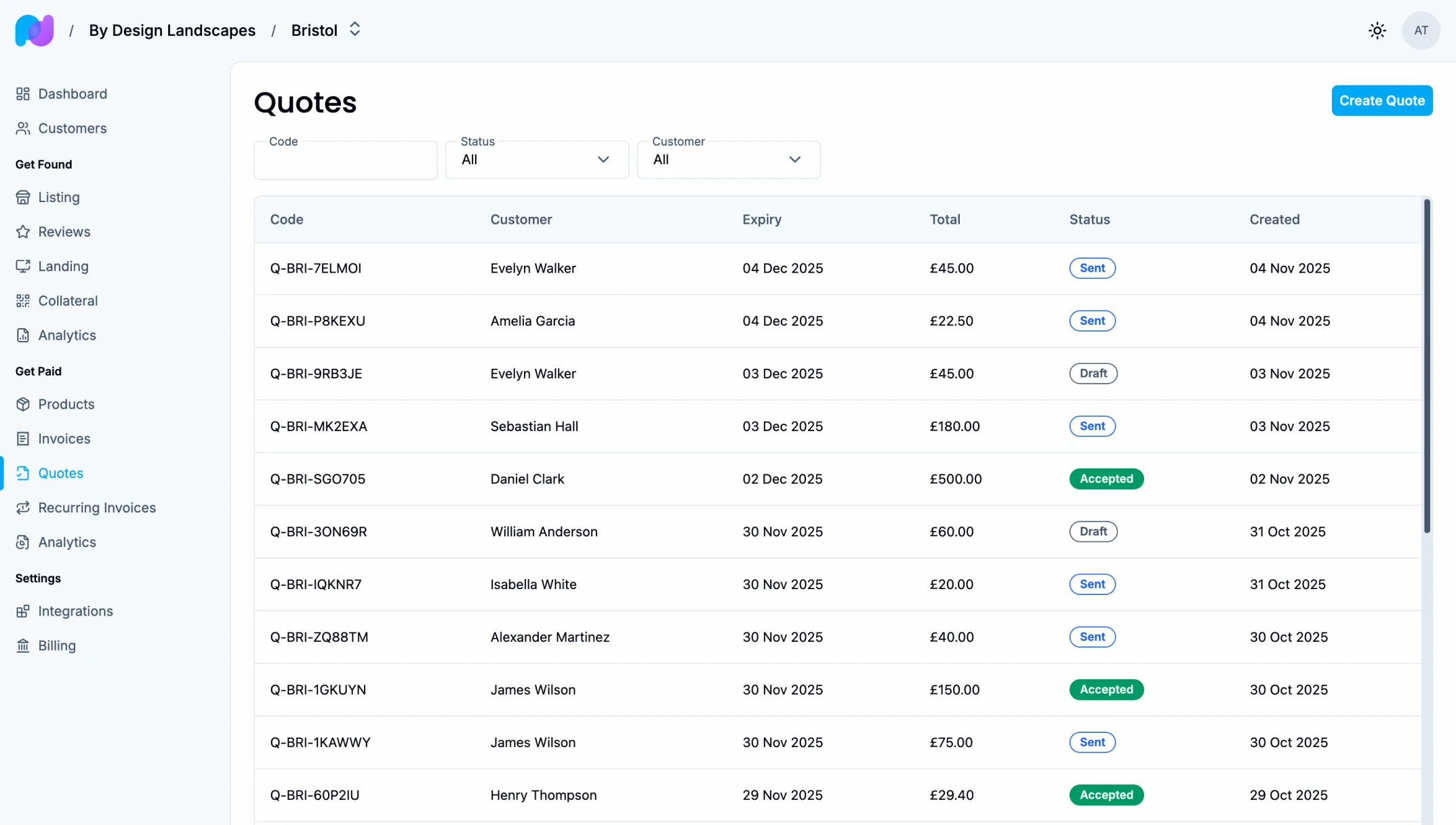
See all your quotes organized by status:
- Draft quotes you're working on
- Sent quotes awaiting customer decision
- Accepted quotes that became invoices
- Expired or cancelled quotes
Track which customers have received quotes and their response status.
You can filter your quotes by:
- Quote number
- Status (draft, sent, accepted, expired, cancelled)
- Customer
You can also sort your quote list by any column. Active filters appear as dismissible pills, so you always know what you're looking at.
Editing Quotes
You can edit quotes in these statuses: Draft, Sent and Expired.
You cannot edit:
- Accepted: Already converted to invoice - can only be cancelled
- Cancelled: Cannot be edited - create a new quote instead
Extending Expiration Dates
If a quote is about to expire and the customer needs more time:
- Open the quote
- Update the expiration date
- Save changes
- Optionally send it to the customer again
This keeps the quote active without creating a new one.
Cancelling Quotes
If circumstances change and the quote is no longer valid:
- Open the quote
- Click "Cancel Quote"
- Optionally notify the customer
Cancelled quotes remain in your history but cannot be accepted.
What happens when you cancel:
- Draft or Sent quotes - Quote is simply marked as cancelled
- Accepted quotes with unpaid invoice - The invoice is deleted and the quote reverts to "Sent" status
- Accepted quotes with paid invoice - Cannot be cancelled (the transaction is complete)
- Expired quotes - Cannot be cancelled (already expired)
This protects you from accidentally cancelling quotes where payment has already been received.
Quote Expiration
Quotes expire to create urgency and ensure pricing stays current:
Default Expiration
- 30 days from creation date
- Customizable per quote
What Happens at Expiration
- Quote status automatically changes to "Expired"
- Customer can no longer accept the quote
- You can see recently expired quotes on your dashboard
- Only draft and sent quotes can expire - accepted and cancelled quotes do not expire
Handling Expired Quotes
- Create a new quote with updated pricing
- Extend the expiration if pricing is still valid
- Contact the customer to discuss
Customer Access
Your customers can view their quotes directly in Paydough by signing in.
This gives customers a better self-service experience, making it easy for customers to find and respond to quotes without digging through email.
Best Practices
Appropriate Expiration Dates
Choose expiration dates based on:
- Small projects: 14-30 days
- Large projects: 30-60 days
- Time-sensitive pricing: Shorter expiration
- Complex proposals: Longer expiration for review
Professional Presentation
Make quotes easy to understand:
- Use clear product names
- Include enough detail to answer questions
Follow-Up Strategy
Don't wait for customers to respond:
- Send a reminder at the halfway point
- Contact 3-5 days before expiration
- Offer to answer questions
- Provide additional information if needed
Common Workflows
Standard Quote Process
- Customer requests pricing
- Create quote with line items
- Send quote to customer
- Customer reviews (you may answer questions)
- Customer accepts quote
- Invoice automatically generated
- Customer can pay invoice
Expired Quote Recovery
- Quote expires without acceptance
- Contact customer to understand hesitation
- Create new quote or extend expiration
- Send refreshed quote
- Customer accepts
- Invoice generated
Multi-Option Quotes
Present multiple service tiers:
- Create separate quotes for each option:
- Basic package quote
- Standard package quote
- Premium package quote
- Send all options to customer
- Customer accepts their preferred option
- Cancel other quotes
Quotes vs. Invoices
Understand the key differences:
Quotes
- Proposals for potential work
- Can be accepted or declined
- Have expiration dates
- Non-binding until accepted
- Become invoices when accepted
Invoices
- Billing documents for actual work
- Payment is expected
- Have due dates (not expiration)
- Create payment obligations
- Generated from accepted quotes or created directly
Use quotes when you need customer approval before billing. Use invoices when work is confirmed or complete.
Invoices
Invoices are the core of Paydough's billing system. This guide covers everything you need to know about creating, sending, and managing invoices.
Recurring Invoices
Recurring invoices automate invoice creation for customers who need the same service regularly. Instead of creating invoices manually each month, Paydough generates them automatically on your schedule.