

Making Tax Digital
What Making Tax Digital asks of your business, which Paydough exports to run each quarter, and how to bring them into your accounting software.
Related docs: Invoices | Payouts and fees | Multi-location management
Making Tax Digital is HMRC's rule that you keep your tax records digitally and send them to HMRC from software. Paydough keeps the records of everything you sell and are paid through it, and gives them to you as files your accounting software imports. Your accounting software sends them to HMRC.
What Making Tax Digital is
There are two parts, and which applies to you depends on how your business is set up.
- VAT: every VAT-registered business already keeps digital records and files its VAT returns from software.
- Income Tax: sole traders and landlords join once their self-employment and property income together is over £50,000 a year, from 6 April 2026. The limit falls to £30,000 from April 2027 and to £20,000 from April 2028. It counts your income before expenses, so every card sale counts in full.
A limited company is covered by the VAT part only. To check whether and when you need to join, use HMRC's find out if and when you need to use Making Tax Digital for Income Tax.
What you have to do
- Keep digital records of your income and expenses, with the date, the amount and what each one was for.
- Send a quarterly update of your totals for the tax year so far. The updates are due on 7 August, 7 November, 7 February and 7 May. HMRC gives no penalty points for a late update in the 2026 to 2027 tax year.
- Send your tax return for the year by 31 January.
You do all of this in software HMRC recognises, such as Xero, QuickBooks or FreeAgent, not in Paydough.
What Paydough gives you
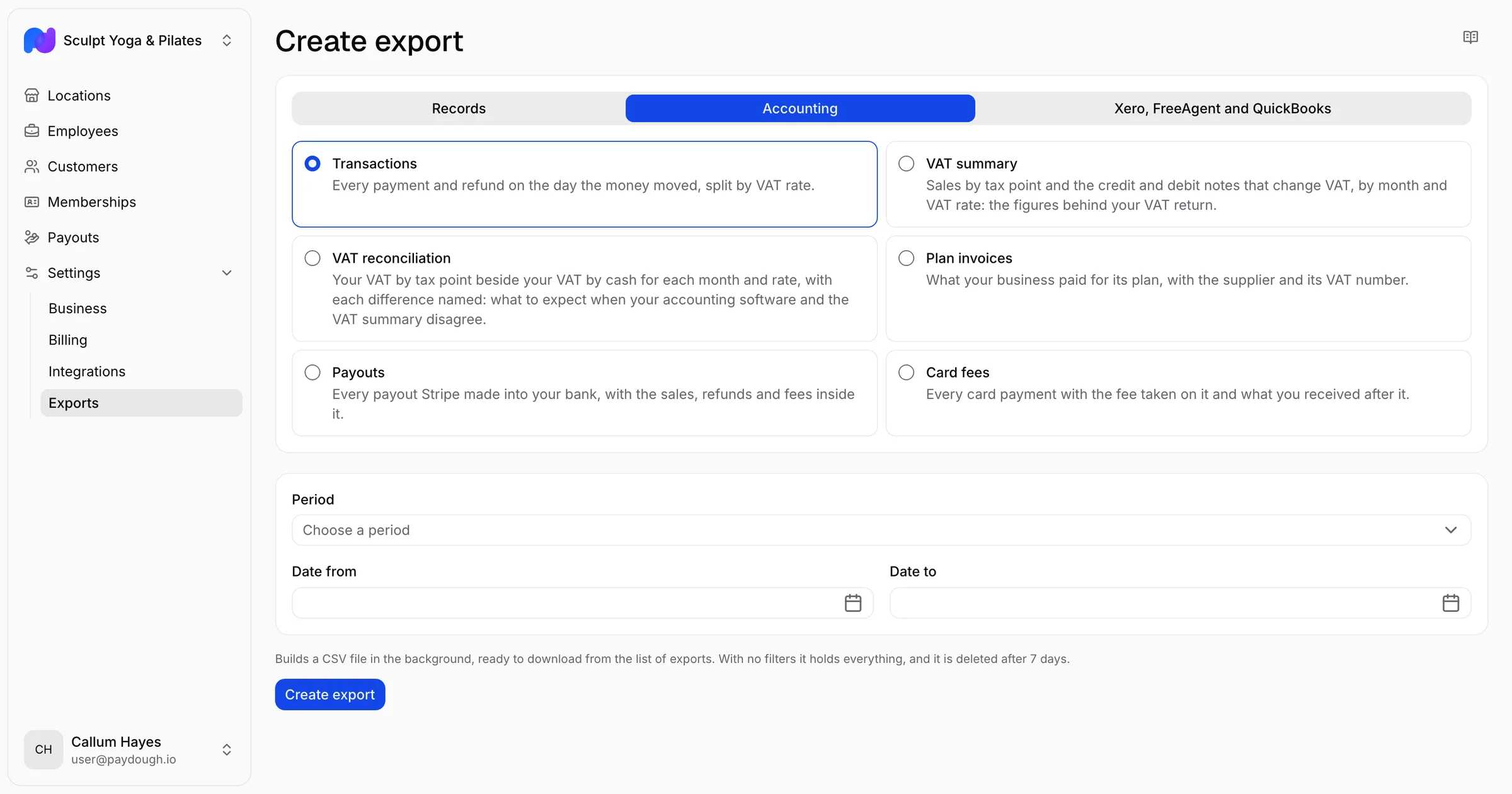
Every sheet is under Exports, in the Accounting and Records groups. Each one says which date its rows are on.
- Transactions: every payment, refund and card fee on the day the money moved, with its VAT by rate. This is your record of money in and out.
- VAT summary: your sales by tax point and the credit and debit notes that change VAT, by month and VAT rate, the figures behind your VAT return's sales and output VAT.
- VAT reconciliation: the VAT summary's figures beside the VAT your money in and out carries, for each month and rate, with every difference named. It is the check to run before you file.
- Invoices and Invoice lines: what you billed, on the day each invoice was issued.
- Credit notes and Refunds: what you credited and what you paid back, each on its own day.
- Payouts and Card fees: each payment Stripe made into your bank, and the fee on every card payment. A card fee is a cost of your business: your sales are always the full amount your customer paid, and the transactions sheet carries each fee as its own row of money out, on the day of its payment.
- Plan invoices: what your business paid Paydough, with its VAT. The monthly fee statement there is the VAT receipt for card fees already in your transactions sheet, so keep it as the receipt and never enter it again as a bill.
Exporting for Making Tax Digital
- Go to Exports and create an export. If your business has several locations, export from your business, so one file covers them all.
- Choose Accounting, then the sheet. To import straight into your accounting software, choose Xero, FreeAgent and QuickBooks instead: those files come in the columns each one reads, so nothing needs mapping. A bank statement file covers one place your money landed, chosen under Paid through, which offers only the places money moved through in the period you picked: Stripe, Global Payments, Tyl, or the payments you recorded by hand. Export one file for each place it offers.
- Under Period, pick Last MTD quarter for your Income Tax update or Last VAT quarter for your VAT return. The VAT quarters appear once your business has said when its VAT quarter ends.
- Create the export, download it and import the file into your accounting software. Before you file, run the VAT reconciliation sheet for the same period as a check.
Importing the file counts as a digital link between Paydough and your software. Typing the figures in, or copying and pasting them, does not.
Once a quarter has been sent to HMRC, do not edit its rows by hand in your software. A correction is made in Paydough, as a credit note and a new invoice, and arrives in the next quarter's file.
Importing into Xero
The Xero files are under Xero, FreeAgent and QuickBooks. There are two ways to bring your sales into Xero. Choose one and stay with it: importing both and coding the payments to sales counts your income twice.
Which way suits your business
- Cash, for a business paid when the booking is made or the order placed: the day your customer pays is the day VAT is due, account credit is not money, and every payment, refund, card fee, bounce and dispute is a line in the file. Xero's VAT return then matches the VAT on cash column of the VAT reconciliation sheet.
- Invoices, for a business that sends invoices and is paid later: VAT is due on the invoice date, and the credit notes have to go into Xero too.
Cash
In Xero, add a bank account for each place your money lands, such as Paydough Stripe, and import the Xero bank statement sheet for that place into it through Xero's bank statement import. Xero maps its columns the first time and remembers them.
- Code each payment line to sales. A payment on an invoice that mixes VAT rates comes as one line per rate, and each line's description says which rate it is, so code each at the rate it names.
- Code each card fee line, whose payee is Paydough, to card processing fees at the standard rate. Your monthly fee statement under Plan invoices is the VAT receipt for those fees, so keep it as the receipt and never enter it again as a bill.
- When a payout reaches your real bank account, record it in Xero as a transfer from that place's account.
- Payments you recorded by hand are already in your real bank feed or your till. Import the Recorded by hand file only if you keep a separate account for them, and never code the same money to sales in both.
Invoices
Import the Xero sales invoices sheet through Xero's sales invoice import. When Xero asks, say the prices are tax exclusive: the file gives each line's price before VAT with its VAT beside it. Xero imports the invoices as drafts, so approve them before you go on, since a payment cannot be matched to a draft. Then import the Xero bank statement sheet into the Paydough account and match each payment line to its invoice. The description carries the invoice number. A payment line matched to an invoice is never coded to sales as well.
Xero finds a contact by its exact name, so two customers with the same name land on one Xero contact; a customer with no account is filed under the email address the invoice went to, and a sale with no customer at all under one contact called Cash Sales, the name bookkeepers keep for a sale paid at the till, by card or cash.
Xero cannot import credit notes from a file. Export the Credit notes sheet for the same period:
- For each row whose VAT effect is reduces, raise a credit note in Xero against the invoice it names, dated the day it was issued, with the same lines and VAT. A note for account credit used on another invoice is allocated to that invoice. A note for a refund is refunded from the Paydough account, where the bank statement file already carries the money out.
- For each row whose VAT effect is increases, a debit note, raise an invoice in Xero to the same customer for the same lines and VAT, and allocate the credit note it reverses against it.
- A row whose VAT effect is none needs nothing in Xero: the money stayed with you and your VAT did not change.
The sales invoices file gives each line's price before VAT with its VAT beside it, sales account 200, and the name of the tax rate Xero sets up for your country: 20% (VAT on Income), 5% (VAT on Income), Zero Rated Income or No VAT in the UK; GST on Income, GST Free Income or BAS Excluded in Australia; and Tax Exempt for an untaxed line in the US, the Netherlands and Spain, where Xero has you name your own rates. A rate Xero has no default name for is left blank, so pick one in Xero. Change the account in Xero if you use another. Xero suggests keeping one import to about 500 rows, so split a larger file by month.
Checking the figures
Before you file, export the VAT reconciliation sheet for the quarter. It shows your VAT on the invoice basis beside your VAT on the cash basis and names each difference: an invoice paid in a different month from the one it was issued, a credit note with no money moving, a payment the bank took back. On the cash route, Xero's VAT return should equal the VAT on cash column; on the invoices route, VAT at tax point.
Importing into FreeAgent
Add a bank account in FreeAgent for each place your money lands and upload the FreeAgent bank statement sheet for that place to it. The file holds the date, amount and description of each payment, refund and card fee, with no header row, which is how FreeAgent reads it, and a line per VAT rate where an invoice mixes rates. Each description ends in the payment's reference, so FreeAgent's duplicate check never drops a second equal payment. Explain each line in FreeAgent as you would a bank line.
Importing into QuickBooks
Add a bank account in QuickBooks for each place your money lands and upload the QuickBooks bank statement sheet for that place through its bank transactions upload. The file is QuickBooks' three-column layout: date, description and one signed amount. QuickBooks asks that a description carry no numbers or punctuation, so each line names the kind of money, the customer and, where an invoice mixes rates, the VAT rate in words; the invoice number is not in the file, so trace a line through the Transactions sheet.
What Paydough does not do
Paydough does not file anything with HMRC, decide your accounting basis or VAT scheme, or replace your accountant. Its figures are records of what happened, not tax advice.